Install bepleez on Shopify
A step-by-step video to install the app and launch your first negotiation.
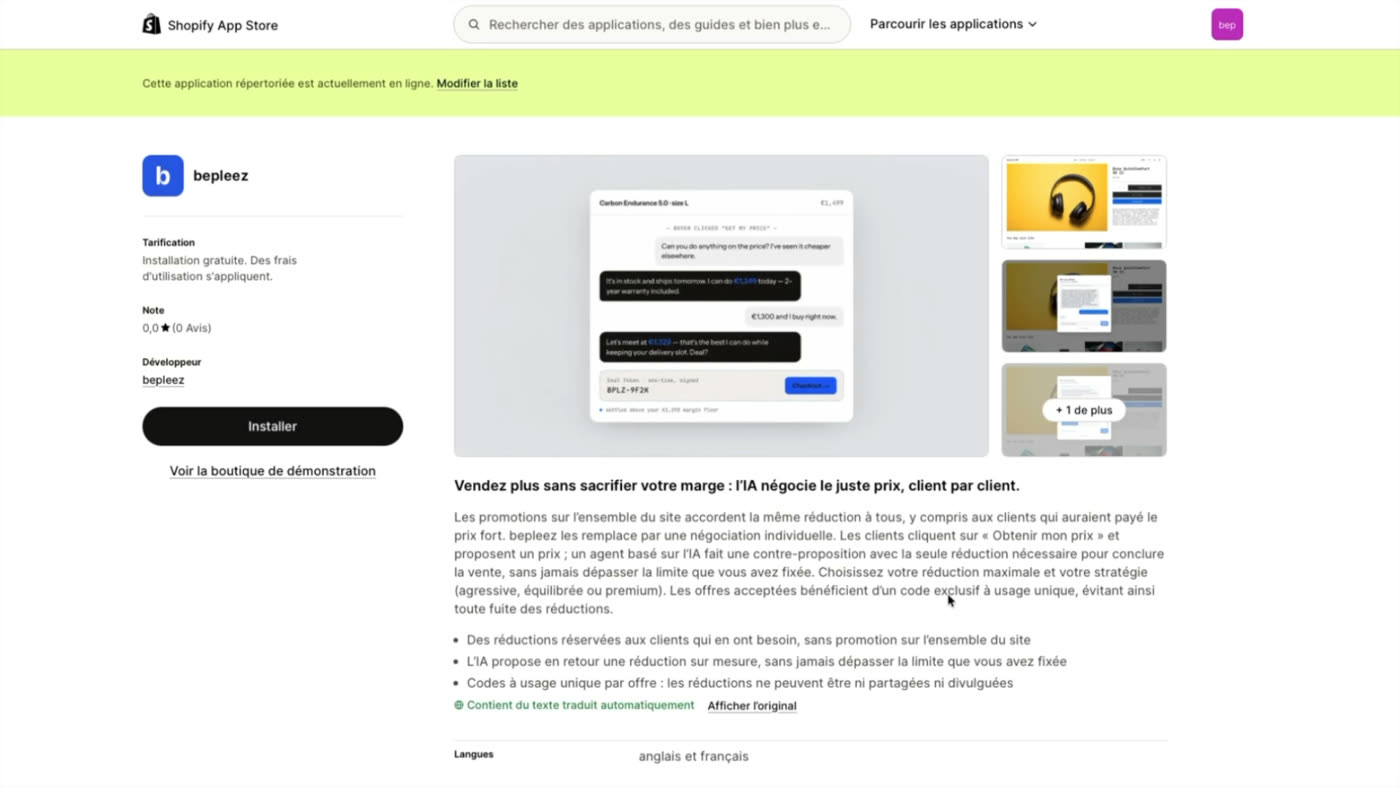
Open the bepleez app on the Shopify App Store
From the link in your e-mail, or by searching for “bepleez” in the Shopify App Store, open the app page and click “Install”.
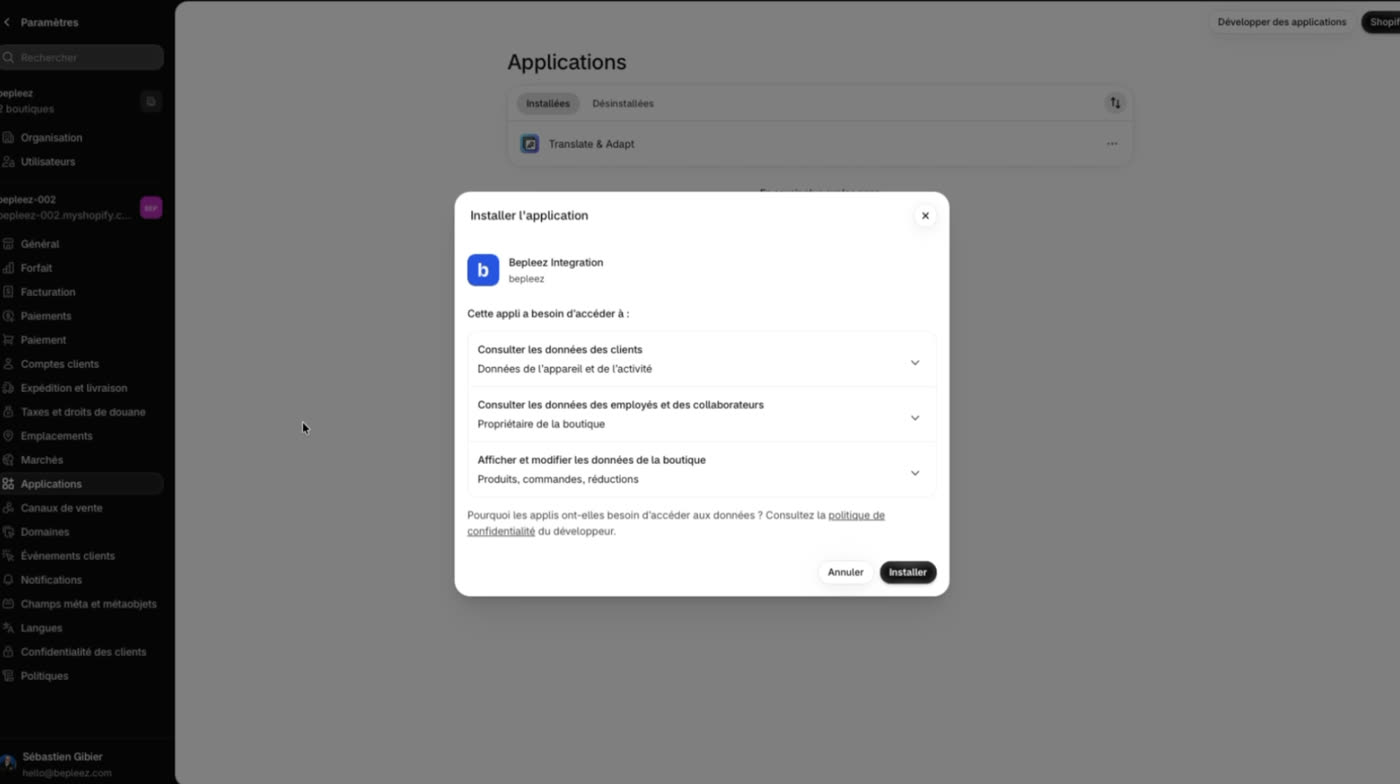
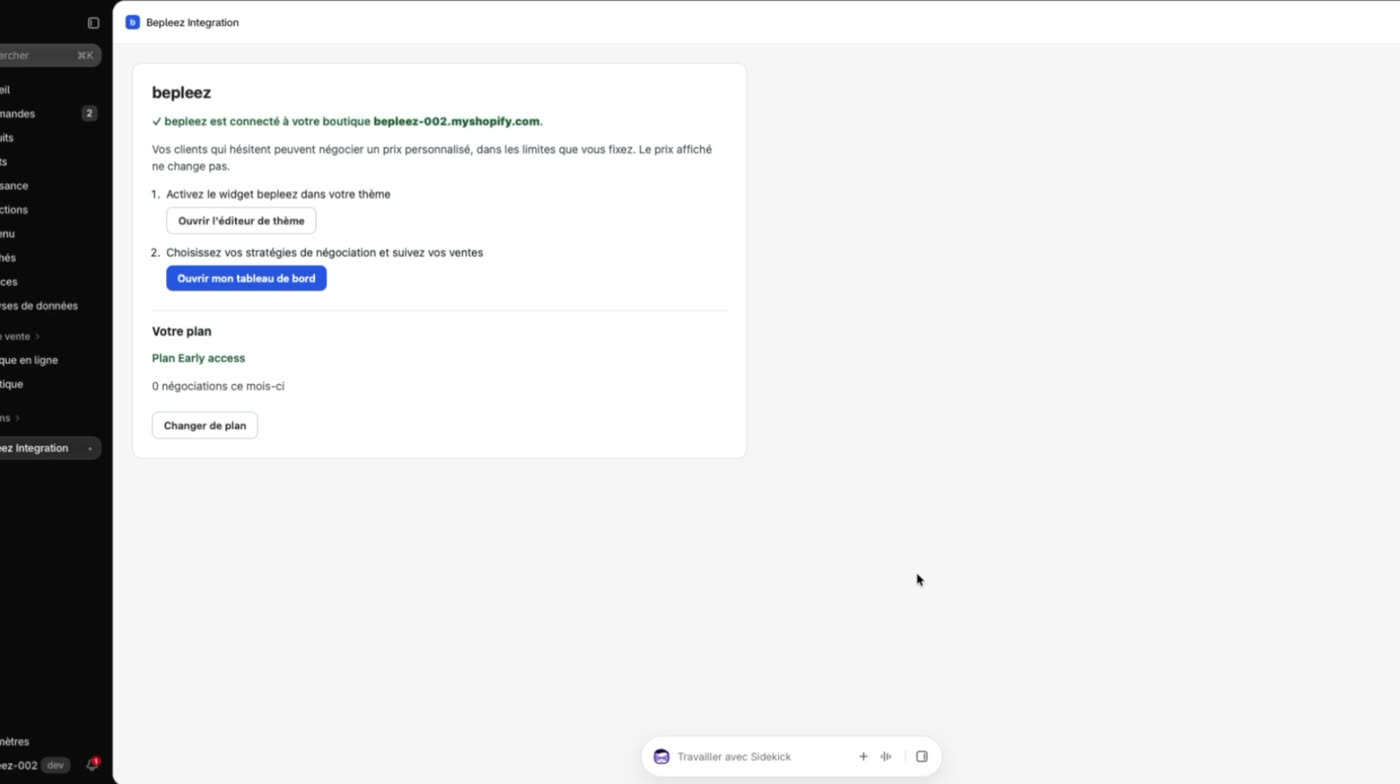
Install the app on your store
Shopify lists the data the app needs access to (customers, store, products, orders, discounts). Approve by clicking “Install”. The app then opens in your Shopify admin: it confirms your store is connected and shows your plan.
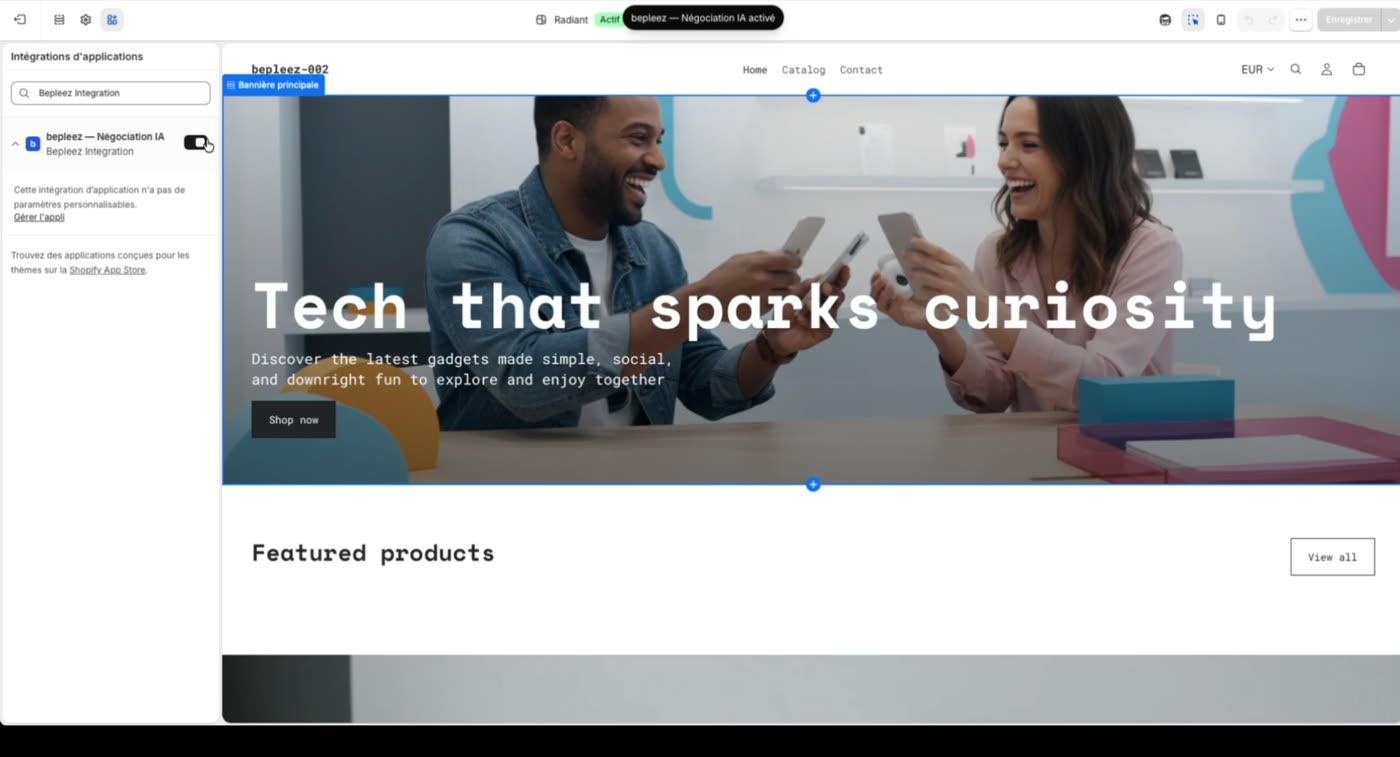
Activate the widget on your theme
In the theme editor, open “App embeds” and check that “bepleez — AI Negotiation” is switched on. It should be on by default; if not, switch it on and click “Save”.
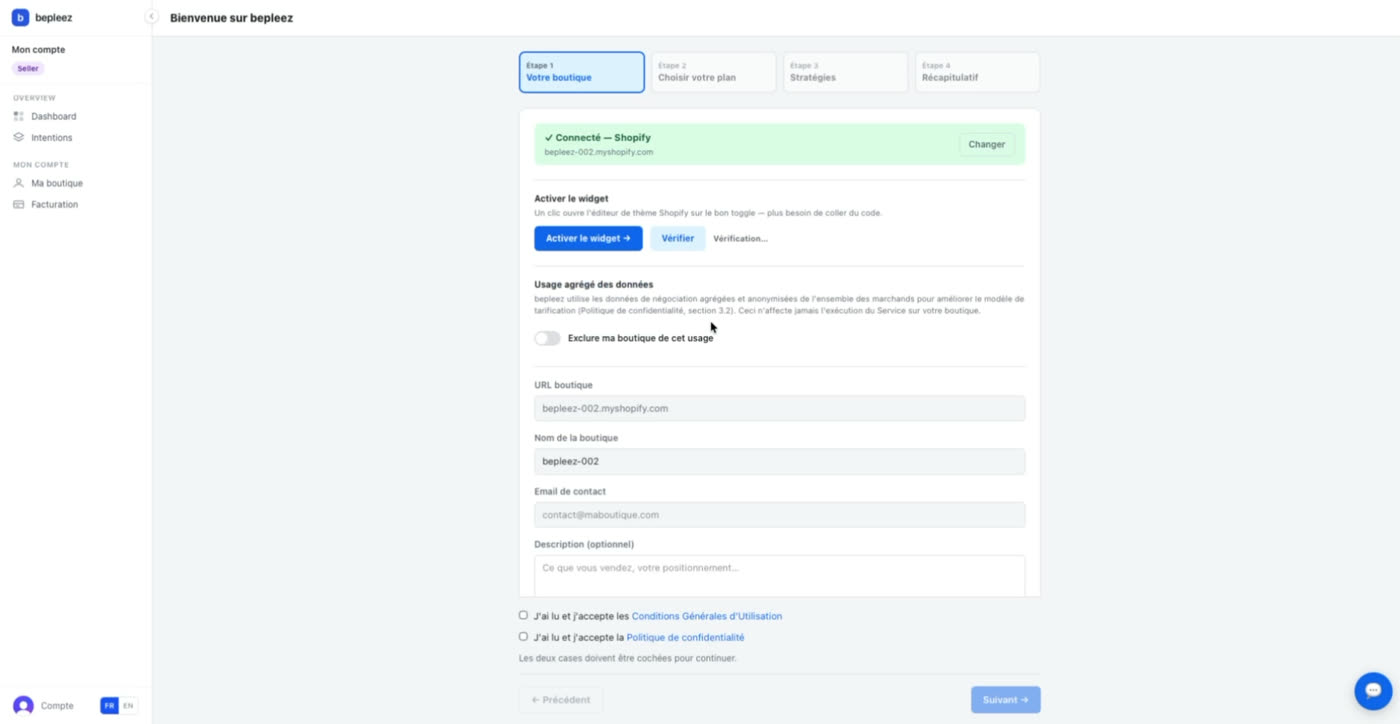
Finish your configuration in the bepleez dashboard
From the app, open your dashboard. Accept the Terms of Service and the Privacy Policy, then follow the steps: plan, negotiation strategy (remember to activate it), summary.
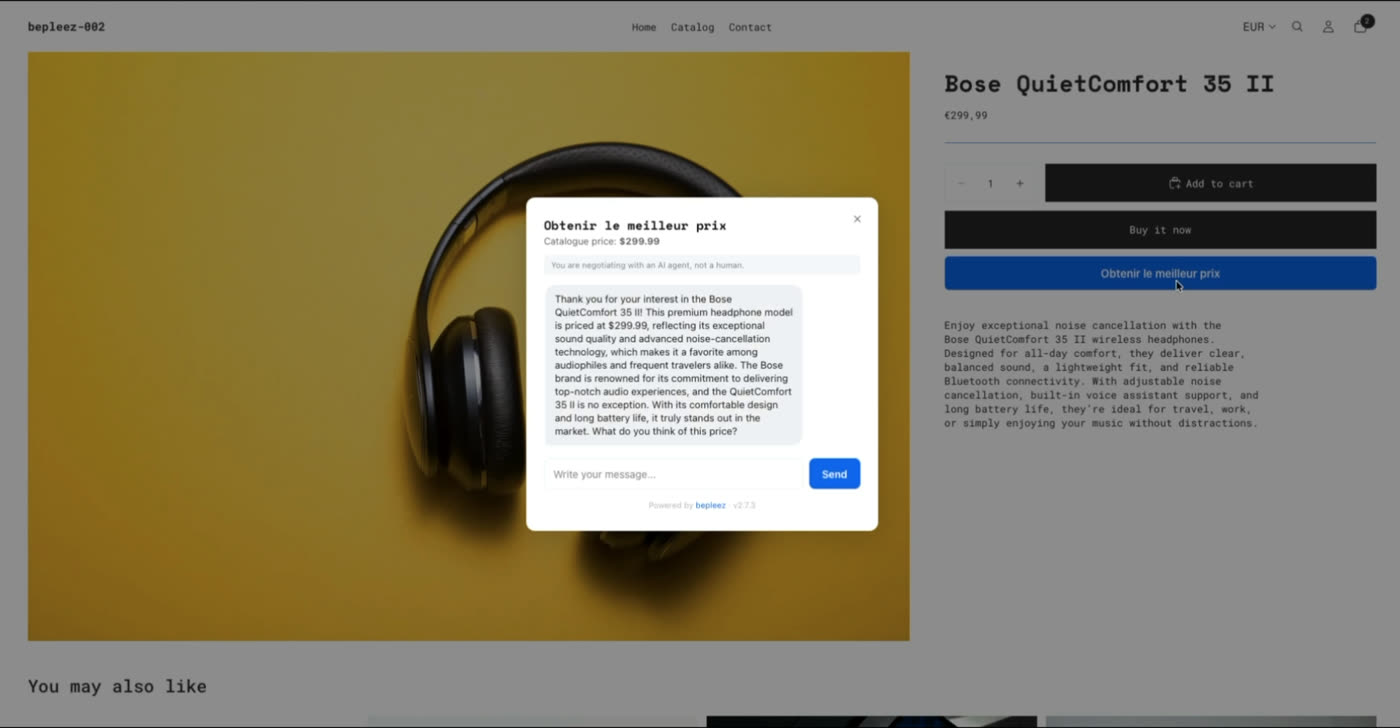
bepleez is live on your store
On a product page, your customers see the “Get the best price” button and can negotiate with the agent, within the limits you set. The displayed price does not change.
Screenshots are in French (Shopify and bepleez interface).